









What is the HubSpot Maps Feature?

Your team’s already using HubSpot to manage contacts, companies, and deals.
But when someone asks a simple question like “Where are our customers actually located?” or “Which regions are our best leads coming from?”, things get messy.
You end up exporting lists. You pull data into spreadsheets. Maybe you try to visualise it somewhere else.
You’re doing all of this… Even though the data is already sitting inside your CRM.
And that’s exactly the problem the HubSpot Maps feature is designed to solve.
After getting access to the private beta of HubSpot Maps, our HubSpot specialist Semih had the chance to test how it actually works inside the platform: not just what the feature promises, but what it genuinely lets you do.
And like many new HubSpot features, it’s useful… but it’s important to understand what it is and how you can use it.
In this article, you’ll learn what the HubSpot map feature is and how it works so you can quickly decide whether it’s something your marketing, sales, or leadership team should actually care about.
What is the HubSpot Maps Feature?
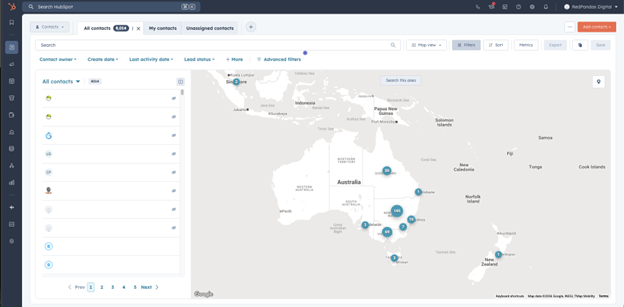
Quick Answer: HubSpot Maps is a CRM feature that lets you visualise contacts, companies, and other records on a geographic map inside HubSpot. It uses location data stored in your CRM to display records on a map and allows you to filter them using existing HubSpot properties.
At its simplest, HubSpot Maps visualises your CRM records on a map within your HubSpot portal.
Instead of viewing contacts or companies as rows in a list, the feature lets you see those same records plotted on a map using the address or location data stored in the CRM.
This idea has existed in the HubSpot ecosystem for years through third-party integrations. But the difference here is that HubSpot Maps aims to bring a basic version of that capability directly into the CRM interface, rather than requiring an external tool.


How to Set Up HubSpot Workflows
What HubSpot Maps Doesn’t Do
Tools like Mapsly and Map My Customers have long offered advanced mapping features inside the HubSpot ecosystem. This includes features like:
- Route optimisation
- Territory assignment
- Field sales planning
HubSpot Maps isn’t trying to replace those.
Instead, it’s built for one narrower goal: giving your team a quick visual picture of where your contacts and customers are.
If that’s all you need, it’s genuinely useful. But if you need territory management or route planning, a dedicated mapping tool might still be the better fit.

How To Set Up HubSpot Lead Scoring to Improve Sales Efficiency
The real value of HubSpot Maps is that it can help your teams turn location data already sitting in your CRM into something they can understand at a glance.
How the HubSpot Maps Feature Works
HubSpot Maps isn’t a separate tool. It’s a visual layer sitting on top of the CRM records you already manage in HubSpot.
Think of it as a map view for your CRM index pages: the same contacts, companies, and deals you’d normally see in a table are now plotted on a map instead.
Here’s a quick rundown of everything you need to know about how HubSpot’s new feature works:
HubSpot Maps Pulls Data From Your Existing CRM Records
HubSpot Maps uses the location data already stored on your records such as city, postcode, state, and country to place pins on the map. It can pull from:
- Contacts: leads, subscribers, or customers in your CRM
- Companies: the organisations linked to those contacts.
- Other objects, like deals: provided location data is stored on those records.
No new data entry needed. If the address fields are filled in, the pin appears.
HubSpot’s documentation also highlights how CRM records can automatically include or be enriched with company and location data. And this is the functionality that makes map visualisation possible, in the first place.
But it’s crucial to remember that a HubSpot Map is only as good as the location data inside your CRM. If addresses or regions are missing or inconsistent, the map will reflect that.
HubSpot Maps Can Be Filtered Using CRM Properties
The map doesn’t show every record at once by default. Like any CRM view in HubSpot, filters control what appears.
You can narrow down the map using properties like:
- Last activity date: see which contacts your team has touched recently
- Lifecycle stage: spot where leads, opportunities, and customers are concentrated
- Owner or lead status: review territory spread across your sales reps
- Custom properties: industry, region, customer segment, and more
This turns the map from a pretty visual into something your team can actually act on.
For example, instead of seeing every customer globally, your team might choose to see only companies that have had activity in the last 30 days or only deals currently in the pipeline.
HubSpot Maps Lets You Interact With Records Directly On It
HubSpot Maps goes beyond being a static dashboard by behaving like a working CRM interface.
Click any pin and you can:
- View key details about the record
- Open the full CRM record
- Jump straight into the contact, company, or deal page
This is what makes the map genuinely useful for day-to-day operations.
A sales manager spotting a cluster of prospects in one city, for instance, can click straight into those records, check recent activity, and assign follow-up tasks without leaving the map.
A quick overview of the HubSpot Maps tool, courtesy of our HubSpot Specialist, Semih.
If you want to make the most out of your HubSpot portal without spending too much to get more out of it, HubSpot Maps can help improve your experience.
Instead of scrolling through lists of companies or contacts, HubSpot’s new feature team can visually understand where activity, opportunities, or customers are concentrated.
And this can make it easier to identify effective and profitable patterns that you can use to take your strategies a step further.
Also, if you’re looking for more ways to maximise your portal, here’s a guide on how to optimise your HubSpot setup without spending more dollars.
3 Things You Can Do With HubSpot Maps
So now you know what HubSpot Maps is and how it works under the hood.
The next question is: what can you actually do with it?
Here’s a breakdown of the three main things the feature lets you do inside your HubSpot portal:
1. See Where Your Contacts and Customers Actually Are
Instead of scrolling through rows in a table, you can see your records plotted on a map and spot patterns instantly:
- A heavy concentration of customers in a particular region
- A territory where your sales team has very little coverage
- A geographic cluster of recent leads from a campaign
- Regions where your existing customers are concentrated
Instead of asking someone to export records and analyse them elsewhere, your team can recognise geographic patterns directly inside HubSpot.
This type of visibility can be especially helpful for leadership teams reviewing market coverage, marketing teams analysing regional campaign performance, or sales managers assessing territory distribution.
2. Filter the Map Using Existing HubSpot Properties
Given that HubSpot Maps sits on top of your CRM index pages, all your existing filters apply.
You can narrow the map down to show:
- Companies assigned to a specific sales rep
- Customers with a recent activity date
- Deals currently in a specific stage
- Contacts generated by a particular marketing campaign
- Accounts located within a particular country or region
This ability to combine CRM filtering with geographic visualisation makes the HubSpot Maps feature far more practical than a simple map of all contacts.
The more useful your CRM filters already are, the more valuable the map becomes.
3. Click Into Records Directly From the Map
Every pin on HubSpot Maps is a live CRM record, and this can create a much more practical workflow.
Let’s say that one of your sales reps is reviewing the map and looking at several customer pins within the same city.
Instead of writing those companies down and searching for them later, they can immediately open the associated records and review information such as:
- Recent activity
- Deal history
- Assigned owner
- Contact details
- Notes or logged interactions
This way, the insight and action happen in the same place.


We Tested 200+ HubSpot Money Making Features So You Don’t have To | Episode 184
The real strength of HubSpot Maps isn’t that it introduces complex mapping technology.
Its strength is much simpler than that: it gives teams a geographic perspective on the CRM data they already rely on every day.
And this new feature can help your teams see distribution, activity, and opportunity in a way that lists and reports often cannot.
How to Access HubSpot Maps
If the HubSpot Maps feature is available in your portal, you can typically access it from the CRM record views inside HubSpot.
Generally, the process looks like this:
Step #1: Open Your CRM Records
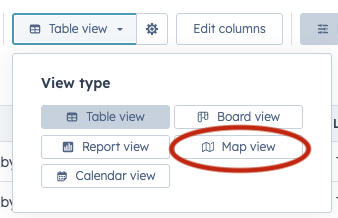
To access the HubSpot Maps feature, you’ll need to first navigate to the records you want to view geographically. Currently, two options support this new update:
- Contacts
- Companies
In short, go to: CRM → Contacts or CRM → Companies
Step #2: Switch to the Map View
If the HubSpot map view is enabled in your portal, you should see an option to switch from the standard table view to a map visualisation.
This allows you to see records plotted on a geographic map based on the location data stored in those records.
Step #3: Apply Filters to Refine the Map
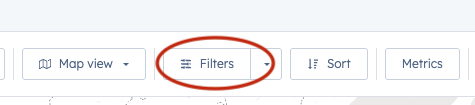
Just like with normal CRM views, you can apply filters to narrow down what appears on the HubSpot Maps.
For example, you might filter by:
- Create date
- Lead status
- Last activity date
- Contact owner
- Order information
This lets you visualise specific segments of your CRM data geographically.
Step #4: Click Map Pins to Open Records
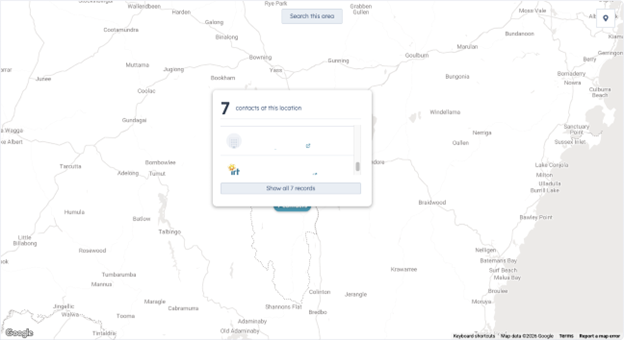
Each location on the HubSpot map represents a CRM record. Clicking a pin allows you to preview or open the associated contact or company record directly from the map.
Important: Your CRM Data MUST Include Location Information
For records to appear on the HubSpot map, they must contain usable location data, such as:
- Company address
- City
- State or region
- Country
If those fields are missing or incomplete, the records may not appear correctly on the map.
What if You Don’t See the HubSpot Maps Feature?
If you can’t find the HubSpot map view, it may be because:
- Your portal doesn’t have access to the feature yet
- The feature is still in beta for your account
- Your HubSpot subscription tier does not include it
If that happens, you can check HubSpot’s Product Updates or Beta features section in your account settings to see whether the HubSpot Maps feature is available to enable.

Is Poor HubSpot List Hygiene the Reason My Portal Has Bad ROI?
FAQ: HubSpot Maps
What is the HubSpot Maps feature?
HubSpot Maps is a feature that lets you visualise CRM records, such as contacts or companies, on a geographic map inside HubSpot. Instead of viewing records only in a list, the HubSpot Map view plots them based on location data stored in your CRM.
How does the HubSpot Maps feature work?
The HubSpot Map feature works by using location data from your CRM records, such as company or contact addresses, and displaying them on a map. You can zoom into regions, click on map pins to view record details, and filter records using existing HubSpot properties.
Which records can appear on HubSpot Maps?
The HubSpot Maps feature can visualise CRM records that contain location data. This typically includes:
• Contacts
• Companies
• Potentially other records, if they include address information
If a record has valid location data, it can be displayed on the HubSpot map.
Can you filter data in the HubSpot Maps view?
Yes. The HubSpot map view allows you to filter records using existing HubSpot properties. For example, you can filter by:
• Last activity date
• Lifecycle stage
• Lead status
• Owner or team
This allows you to see specific groups of records geographically.
Is HubSpot Maps a route planning tool?
No.
The HubSpot map feature is designed for CRM visualisation, not route planning. It allows you to see where your contacts and companies are located, but it does not provide route optimisation, territory management, or field-sales workflows.
Can HubSpot Maps replace tools like Mapsly or Badger Maps?
In most cases, no. The HubSpot Maps feature is useful for visualising CRM data, but specialist mapping tools still offer advanced capabilities such as route optimisation, territory planning, and field activity tracking.
Why would businesses use the HubSpot Maps feature?
Businesses use the HubSpot map to better understand geographic patterns in their CRM data.
Common use cases include:
• Seeing where leads and customers are located
• Understanding regional sales coverage
• Identifying geographic clusters of accounts
• Reviewing territory distribution
Is HubSpot Maps available to all HubSpot users?
Availability may depend on your HubSpot portal and product tier. At the time of writing, the HubSpot Maps feature has appeared in beta for some accounts, and access may vary depending on your HubSpot subscription and feature rollout.
Is HubSpot Maps Worth Paying Attention To?
HubSpot Maps isn’t trying to replace specialist mapping software, and that’s okay.
Its real value lies in helping your team turn location data inside HubSpot into something actionable, whether that’s:
- Spotting regional clusters of customers
- Reviewing market coverage
- Identifying opportunities your team may be missing
When your CRM data becomes easier to see and interpret, your team is far more likely to actually use it… And CRM adoption is still one of the biggest challenges sales and marketing teams face today.
So if HubSpot Maps becomes available in your portal, it’s worth exploring because it’s a practical upgrade to how you interact with your CRM data.
If you want to get the most out of it, the next step is simple: take a closer look at the quality of your CRM data.
The better your location and company data are inside HubSpot, the more valuable a feature like this becomes.
And if you’re trying to figure out how to turn HubSpot into a true revenue engine, that’s a problem we can help you solve.
Get in touch with us today to schedule a free HubSpot portal audit and consultation with one of our growth experts to learn more about how you can maximise features like HubSpot Maps to generate leads and close sales.

Does Your Portal Need Work? Here’s How to Do a HubSpot Health Check
About the Author




Get the best content marketing insights right in your inbox!
Subscribe to our Newsletter and get marketing insights delivered to your inbox every week.