









How to Give RedPandas Access to Your Google Ads and Meta Ads Accounts for a Complimentary Paid Ads Audit

Do you actually know what’s working in your paid ads right now?
And we’re not talking about what the dashboard says at a glance, but what’s driving real leads, real pipeline, and real revenue.
If you’re being honest, there’s also usually another question right behind the first one: “How do I find out without handing over passwords or letting someone loose in our accounts?”
That tension is completely normal, especially if you already have an agency in place, multiple stakeholders involved, or accounts that have been touched by more people than you can remember.
After all, the last thing you want is disruption, awkward conversations, or someone accidentally changing something live.
At RedPandas, we run complementary paid ads audits specifically for teams at this exact stage: the time before decisions are made, before agencies are changed, and before more money is spent.
The goal here, however, isn’t to take over your accounts or “optimise” anything behind the scenes.
It’s simply to look under the bonnet and tell you what’s working, what isn’t, and where performance is leaking.
This method ensures that there’s:
- No password sharing.
- No changes to campaigns.
- No disruption to your current setup.
Just a controlled, temporary look designed to surface opportunities and issues quickly.
In this guide, you’ll learn the safest and most discreet way to give RedPandas access, including how to do it without drawing attention if needed, so you can get clarity first and make decisions second.
A Quick Note On Discretion… Especially If Another Agency Is Involved
Before you do anything inside Google or Meta, it’s worth addressing a situation that comes up far more often than most people admit: you want a second opinion, but you don’t want to trigger unnecessary noise.
This usually isn’t about being secretive, but more about being practical and not creating unnecessary tension in your teams.
Why Discretion Matters At This Stage
Most ad accounts already have a history, such as previous agencies, current agencies, freelancers, and internal staff, all layered over time. Adding a new, clearly branded agency email can sometimes create questions you’re not ready to answer yet.
Think of it like getting a building survey done before buying a house. You wouldn’t invite the estate agent to stand next to the surveyor while they’re checking the foundations.
Common reasons teams choose a discreet option include:
- You’re still working with another agency and don’t want to create tension prematurely.
- You want independent insight before deciding whether change is needed.
- You report to multiple stakeholders and want clarity before looping everyone in.
All of these reasons are reasonable and expected.
How The “Sleeper Email” Option Actually Works
Rather than using a visible RedPandas email address, we can audit your accounts using a neutral Gmail address that blends in like any other internal user.
Adding a sleeper email is like issuing a temporary visitor pass instead of handing over the keys to the building. This allows you to maintain as much control as possible while still allowing RedPandas’ experts to get a more accurate idea of what needs to be worked on.
Generally, the process looks like this:
- You tell us which “@gmail.com” address you’d like us to use. Alternatively, you can suggest a neutral one.
- We create that Gmail account specifically for this audit.
- That email is added as a user or partner inside your ad platforms, the same way you’d add a colleague to your account.
From Google or Meta’s perspective, this is just another authorised user: no branding, no alerts, no changes to ownership.
What This Does Not Change
It’s important to be clear about what discretion doesn’t mean, so there’s no confusion later.
Using a sleeper email:
- Does not give us more access than agreed.
- Does not allow changes to campaigns, budgets, or settings.
- Does not bypass platform permissions or security controls.
The access level is still defined by you, and everything remains visible and revocable inside your account settings.
In other words, the email address is just the label on the badge, which means that the doors it can open are still entirely up to you.
When This Option Makes The Most Sense
This approach is especially helpful if your setup is already complex or political.
It tends to work best when:
- Multiple agencies have touched the account over time.
- You’re not 100% sure who still has access.
- You want facts before conversations.
It keeps the focus where it should be: on understanding performance, not managing perceptions.


Paid Media Campaigns Align With the Buyer’s Journey
Granting access for an audit shouldn’t feel like a commitment or a declaration of intent. It’s simply a way to get clear, unbiased answers while staying in control of the process.
Choosing a discreet access option, at the end of the day, is about giving yourself space to make better decisions, calmly and on your own terms.
How to Give Access to Google Ads
- Log in to your Google Ads account.
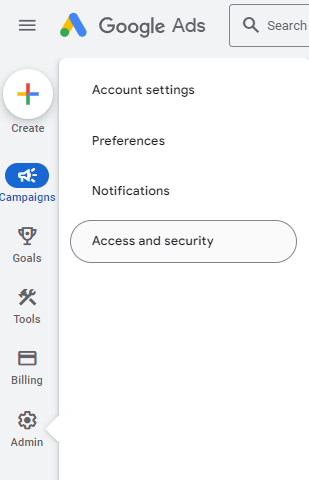
- Navigate to the “Admin” icon on the left-hand side of the screen and select “Access and security.”
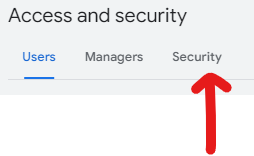
3. Click on “Security.”
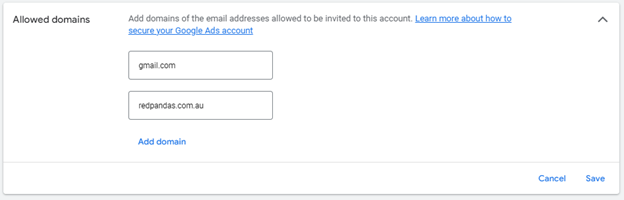
4. Click on “Allowed Domains” and enter “redpandas.com.au” and “gmail.com” in the fields available. You will have to click the “Add domain” text to add both. Click “save” once complete.
5. Navigate back to “Users” and click the blue “+” icon.
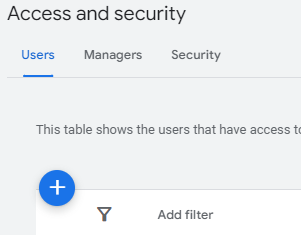
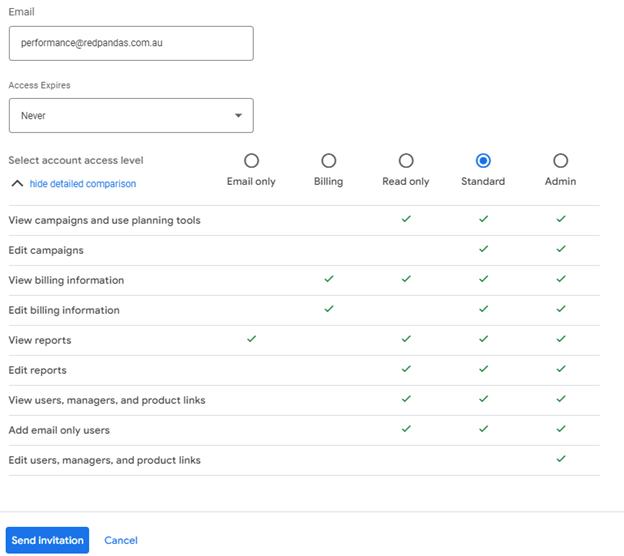
6. Enter (performance@redpandas.com.au) email address and select “Standard or Admin” as the access level, and then select “Send Invitation.”
How to Give Access to Google Analytics
- Sign in to Google Analytics.
- Click Admin, and navigate to your Account.
- In the Account column, click Account Access Management.
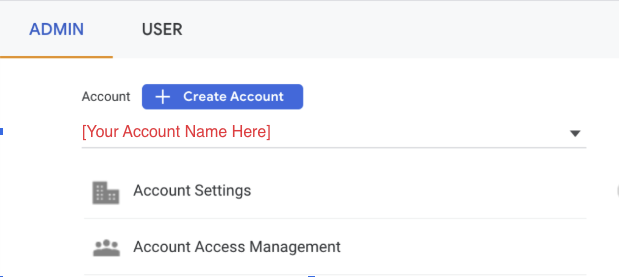
- In the Account permissions list, click +, then click Add users.
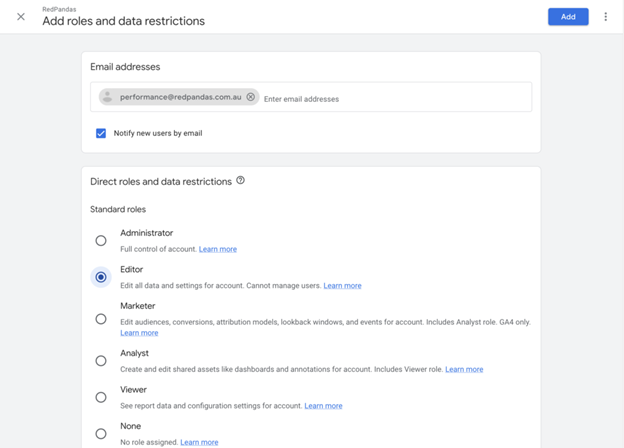
- Enter performance@redpandas.com.au.
- Select Notify new users by email to send a message to us that you have added us to your account.
- Under Direct roles and data restrictions, select Editor.
How to Give Access to Meta Business Manager
Only people with full control of your business portfolio can add people to the business portfolio and assign business assets.
To help keep your accounts more secure, assign only the level of access and permissions that people need to perform their job. By default, people are assigned basic access when added to a business portfolio.
Learn more about best practices for keeping your business portfolios more secure.
Before You Begin
- You need to have full control of a business portfolio.
- You should enable two-factor authentication.
Add People to Your Business Portfolio
To add someone to your business portfolio and assign them a business asset, here are the steps for adding us to your Meta for Business account below:
Meta for Business
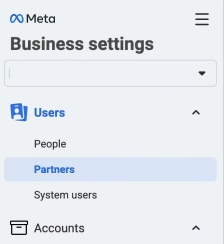
- Go to Business settings.
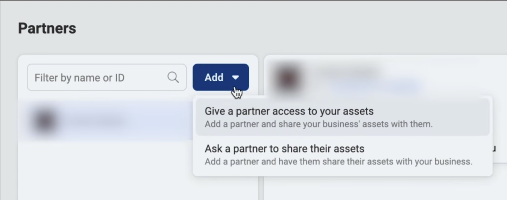
- Under Users on the left-hand menu, click Partners.
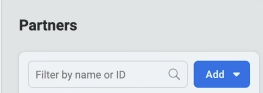
3. Click Add.
4. Once the dropdown menu appears, click “Give a partner access to your assets”.
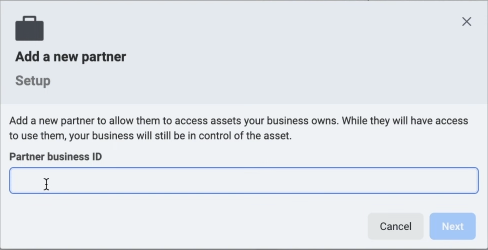
5. In the pop-up, enter our Business portfolio ID: 807057510709236
6. From here, you’ll be able to decide which assets and permissions to assign to us based on what a RedPandas paid media partner recommends.
Please take note that we will only have access to what you assign.
7. Click Add.
How to Give Access to LinkedIn Campaign Manager
To run LinkedIn ads through RedPandas, you’ll need to add us as an authorised user on your LinkedIn Campaign Manager account. This gives us the access needed to manage and optimise your campaigns without sharing any login credentials.
Before You Begin
If you’d prefer a more discreet option, let us know and we can set up a sleeper LinkedIn profile: a neutral account that blends in alongside other team members, with no RedPandas branding visible in your account.
See the Discretion section above for more detail on how this works.
Add People to Your Campaign Manager
- Log in to your LinkedIn account and go to Campaign Manager.
- Get in touch with RedPandas and let us know you’re ready to grant access. We’ll provide you with the LinkedIn email address to add: either a named RedPandas address or a sleeper profile, depending on your preference.
- In Campaign Manager, click the Account Settings tab on the left side of the screen and select Manage Access from the dropdown menu.
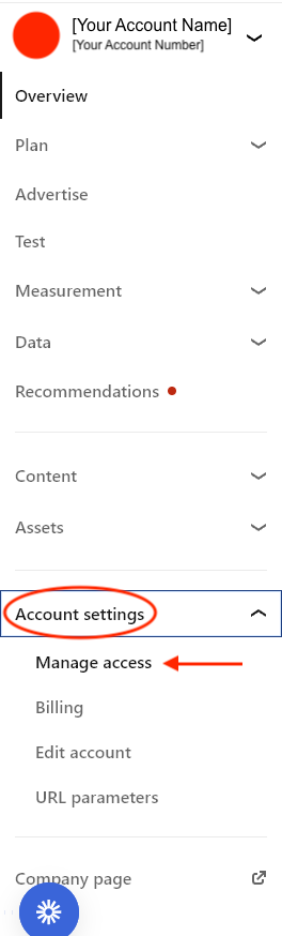
4. Click Add User and enter the LinkedIn profile email address we provided in Step 2.
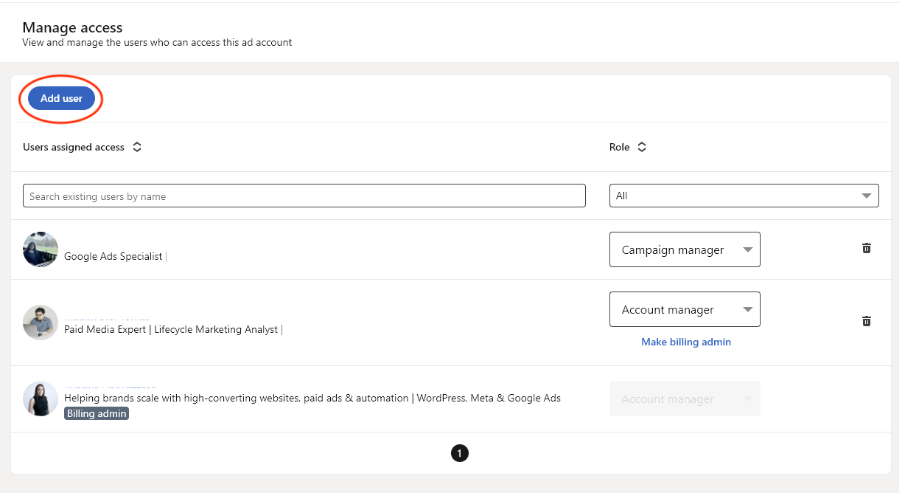
- Set their role to Account Manager and click “Add”.
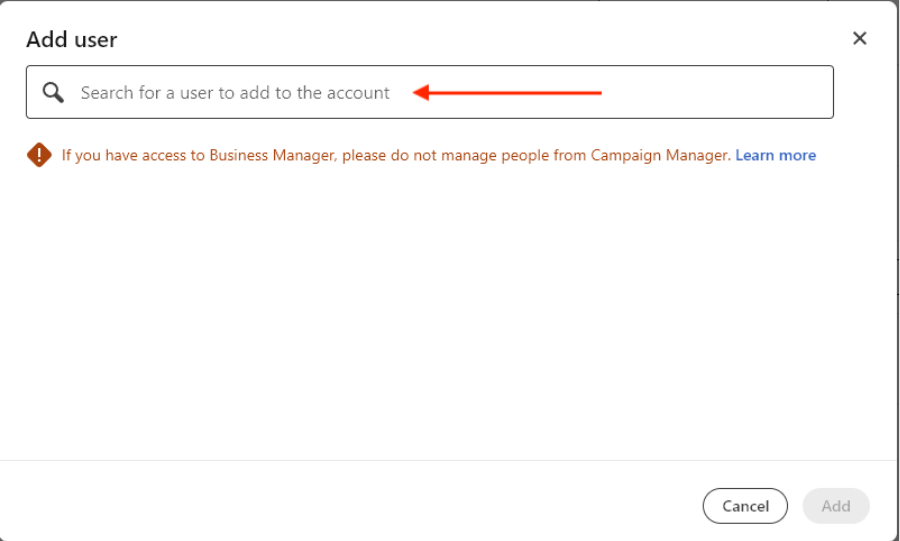
Once you’ve done this, RedPandas will have the access needed to review and manage your LinkedIn campaigns. You remain in full control and can remove access at any time from the same Manage Access screen.
How to Give Access to Google Merchant Center (e-commerce clients only)
- Sign in to your Merchant Center account.
- Click the tools and settings icon
 , then select Account access under the “Settings” menu.
 - Click the + Add user button.
- Enter the email address performance@redpandas.com.au.
- Click Add user.
- On the next page, select admin access.
- Click Save.
What Happens Next (And Why It’s Worth Doing Now)
At this point, you’ve seen that getting a second opinion on your paid ads doesn’t require risk, disruption, or awkward conversations. It’s simply a controlled way to understand what’s really going on before you make any bigger decisions.
And that’s the real value here.
A complimentary paid ads audit gives you clarity when:
- Spend is going out, but confidence isn’t coming back.
- Results look “fine”, but you’re not sure they’re optimal.
- You want insight before committing to change, budget increases, or a new partner.
The cost of waiting is usually invisible: a few more weeks of inefficient spend, missed opportunities, or decisions made on gut feel instead of data. A short audit removes that guesswork.
If you want to move forward, the next step is simple:
- Grant access using the steps above.
- Let us review the account.
- Get clear, practical feedback you can act on, regardless of whether you work with us or not.
If nothing else, you’ll walk away better informed. And if there is an opportunity to improve performance, you’ll know exactly where it is and what to do about it.
When you’re ready, you can get in touch with us to request your complimentary paid ads audit, and we’ll take it from there.


How We Helped GOFAR Get 300% ROI On Its Ad Spend and 23X Its Sales
About the Author




Get the best content marketing insights right in your inbox!
Subscribe to our Newsletter and get marketing insights delivered to your inbox every week.