









How to Give RedPandas Access to Your Google, Facebook, LinkedIn, and Instagram Accounts

In this article, you’ll learn exactly how to give us access to your Google Accounts, Facebook Pages/Advertising Accounts, LinkedIn accounts, and Instagram Pages. The steps have been laid out for each account type so that you can give us access without spending significant time on this. And if you’re not working with us, this article will show you the right way to share access to your accounts so that it remains secure.
Google Ads
- Log in to your Google Ads account.
- Navigate to the “Admin” icon on the left hand side of the screen and select “Access and security.”

3. Click on “Security.”

4. Click on “Allowed Domains” and enter “redpandas.com.au” and “gmail.com” in the fields available. You will have to click the “Add domain” text to add both. Click “save” once complete.

5. Navigate back to “Users” and click the blue “+” icon.

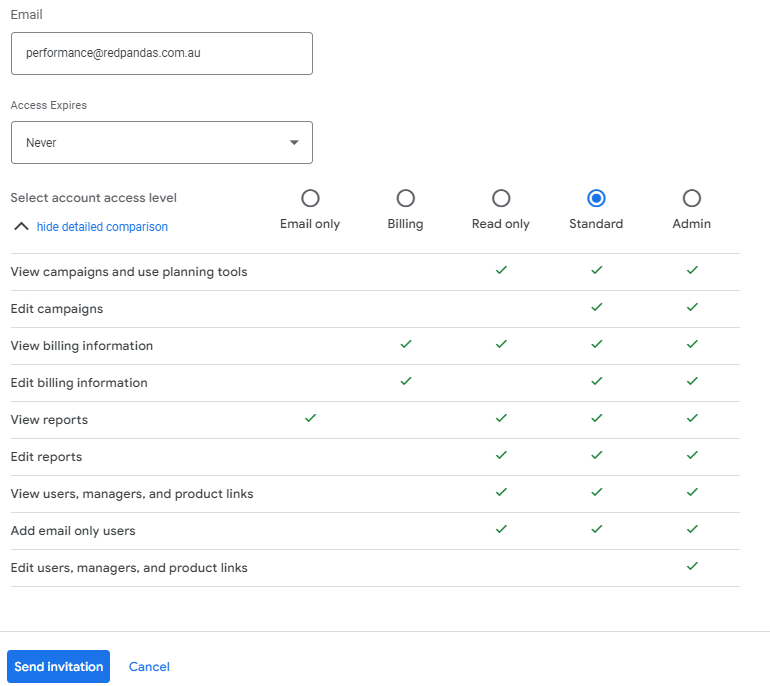
- Enter (performance@redpandas.com.au) email address and select “Standard or Admin” as the access level and then select “Send Invitation.”
Google Analytics (for all Clients)
- Sign in to Google Analytics.
- Click Admin, and navigate to your Account.
- In the Account column, click Account Access Management.
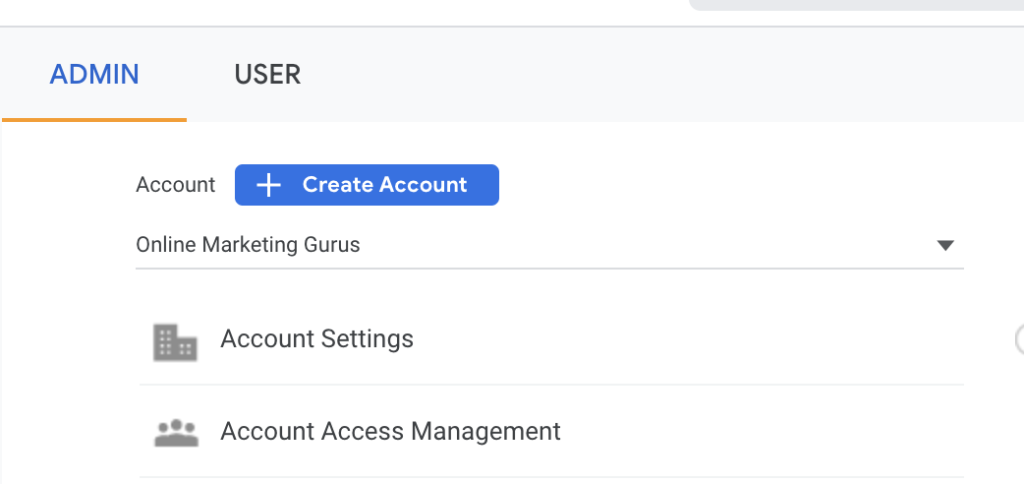
- In the Account permissions list, click +, then click Add users.
- Enter performance@redpandas.com.au.
- Select Notify new users by email to send a message to us that you have added us to your account.
- Under Direct roles and data restrictions, select Editor.

- Click Add.
Google Merchant Center (for ecommerce clients)
- Sign in to your Merchant Center account.
- Click the tools and settings icon
 , then select Account access under the “Settings” menu.
 - Click the + Add user button.
- Enter the email address performance@redpandas.com.au.
- Click Add user.
- On the next page, select admin access.
- Click Save.
 , then select Account access under the “Settings” menu.
Google Tag Manager (for all clients)
- Click Admin.
- In the Account column, select User Management.
- Click
 .
. - Select Add new users.
- Enter performance@redpandas.com.au.
- Set Account Permissions to Administrator.
 .
.
- Click Invite.
Google My Business (for SEO clients)
- On your computer, sign in to Google My Business.
- If you have multiple locations, open the location you’d like to manage.
- Click the three dots on the right.

- Go to Business Profile settings.
- Click on Managers

- At the top left, click Add
 .
. - Enter performance@redpandas.com.au.
- Under “Access,” choose Manager.
- Click Invite.
 .
.Google Search Console (for SEO clients)
- Sign in to Google Search Console
- Choose the property in Search Console

- Click the Settings icon in the navigation pane.

- Click Users & permissions.

- Click Add User.
- Enter the email address performance@redpandas.com.au.
- Choose the Full permission level.
- Click Add.
Meta Business Manager
Only people with full control of your business portfolio can add people to the business portfolio and assign business assets.
To help keep your accounts more secure, assign only the level of access and permissions that people need to perform their job. By default, people are assigned basic access when added to a business portfolio.
Learn more about best practices for keeping your business portfolios more secure.
Before you begin
- You need to have full control of a business portfolio.
- You should enable two-factor authentication.
Add People to Your Business Portfolio
To add someone to your business portfolio and assign them a business asset, here are the steps for adding us to your Meta for Business account below:
Meta for Business
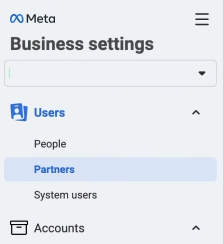
- Go to Business settings.
- Under Users on the left-hand menu, click Partners.
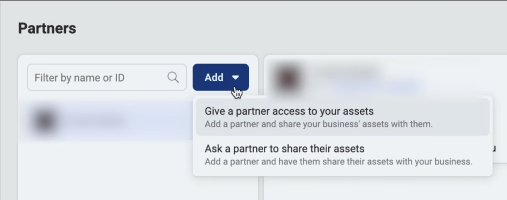
- Click Add.
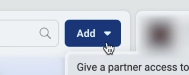
- Once the dropdown menu appears, click “Give a partner access to your assets”.
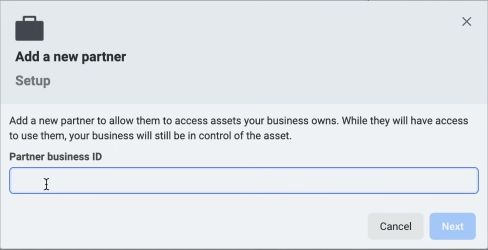
- In the pop-up, enter our Business portfolio ID: 807057510709236
- From here, you’ll be able to decide which assets and permissions to assign to us based on what a RedPandas paid media partner recommends. Please take note that we will only have access to what you assign.
- Click Add.
LinkedIn Business Manager
- Sign in to LinkedIn Business Manager.
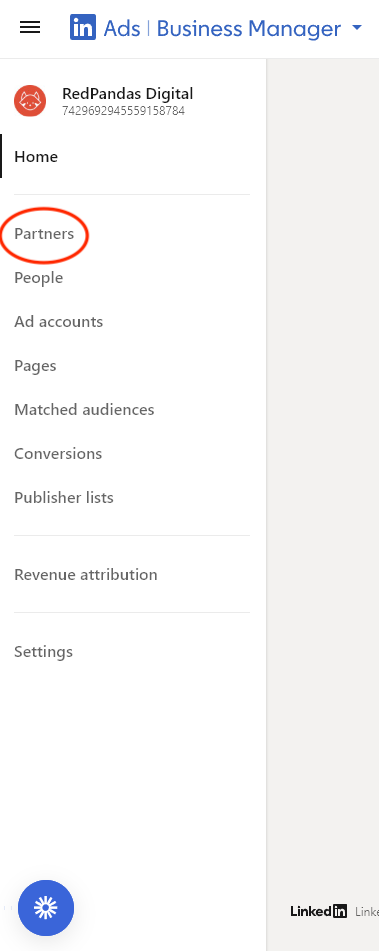
- Head to the left side of the screen and click “Partners”.
- On the “Partners” Page, look for the field on the right side that says “Enter Business Manager ID”.

- Add RedPandas’ business ID: 7429692945559158784, and click “Add Partner”.
So, What Now?
Once you’ve given us access to everything, let us know and we’ll check that everything’s been done correctly on our end.
About the Author





Get the best content marketing insights right in your inbox!
Subscribe to our Newsletter and get marketing insights delivered to your inbox every week.